

QUICK START
Your first Chartlapse.
Start with an example. Make it yours. Download the result.
Screen guide checked · v2.09.23g ·
01Start
Start with an example
Open Create, scroll to ‘Or start from an example’, and choose S&P 500 Market Map. Its data and design are ready to use.
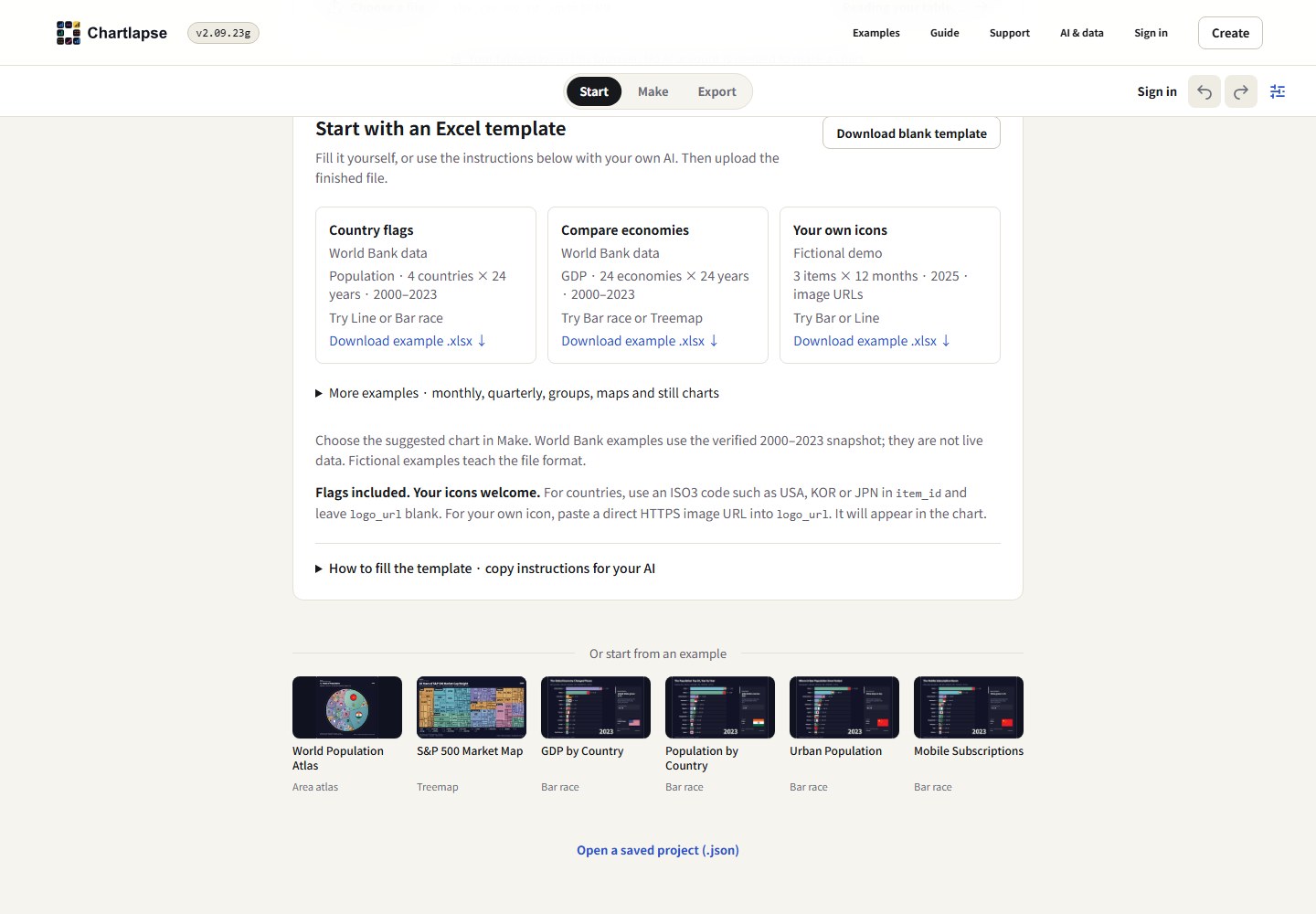
No file needed for your first try. Open full-size screenshot ↗ 02Make
Make it yours
Play the preview to see the chart change over time. Adjust the title, chart style, and colors, then check that the labels and values read clearly.
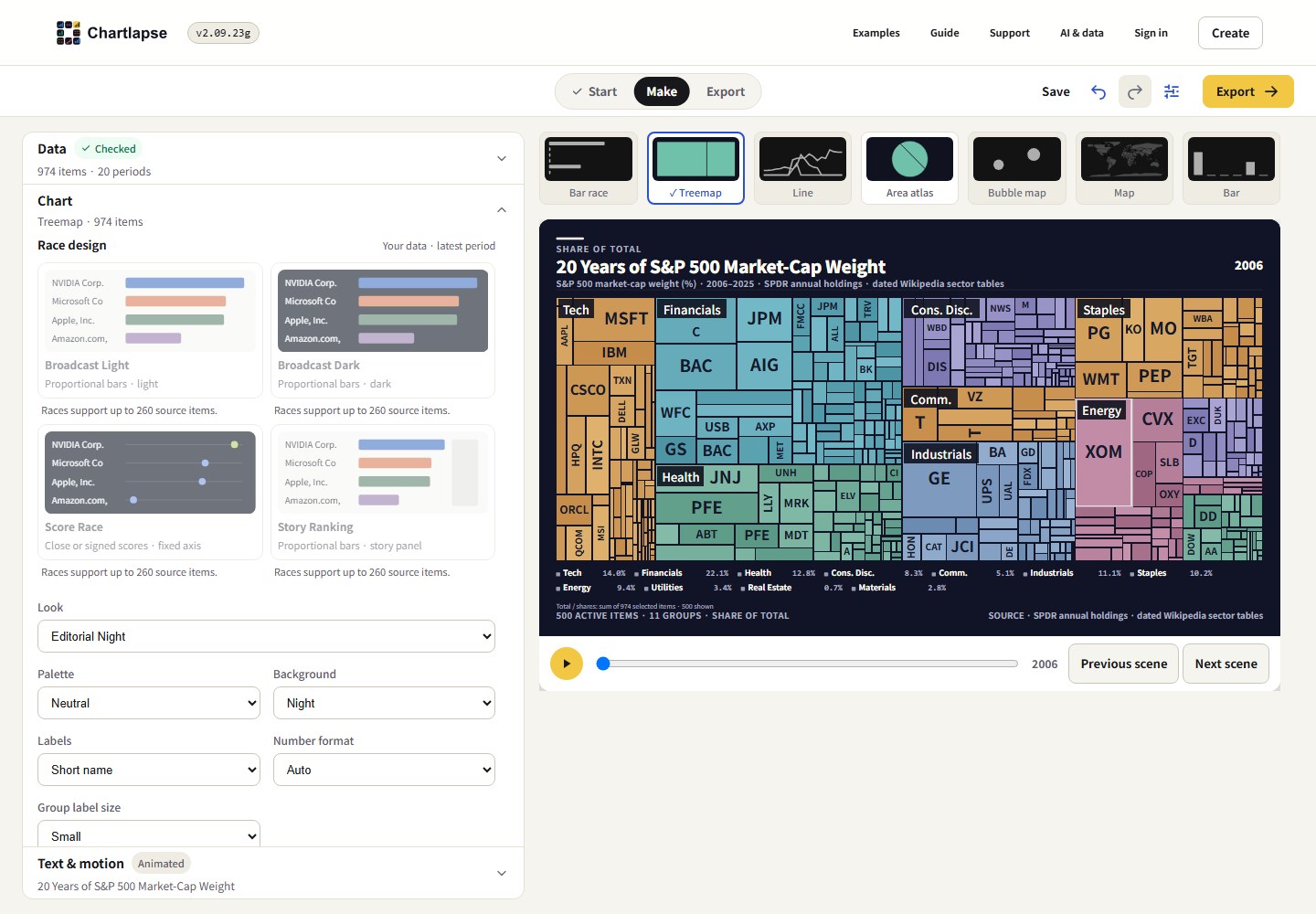
Check your chart in the preview before downloading. Open full-size screenshot ↗ 03Export
Download your chart
Open Export. Choose Image for a single scene, Video 16:9 for landscape motion, or the 9:16 option for a vertical video. Choose a format and use the download or export button.
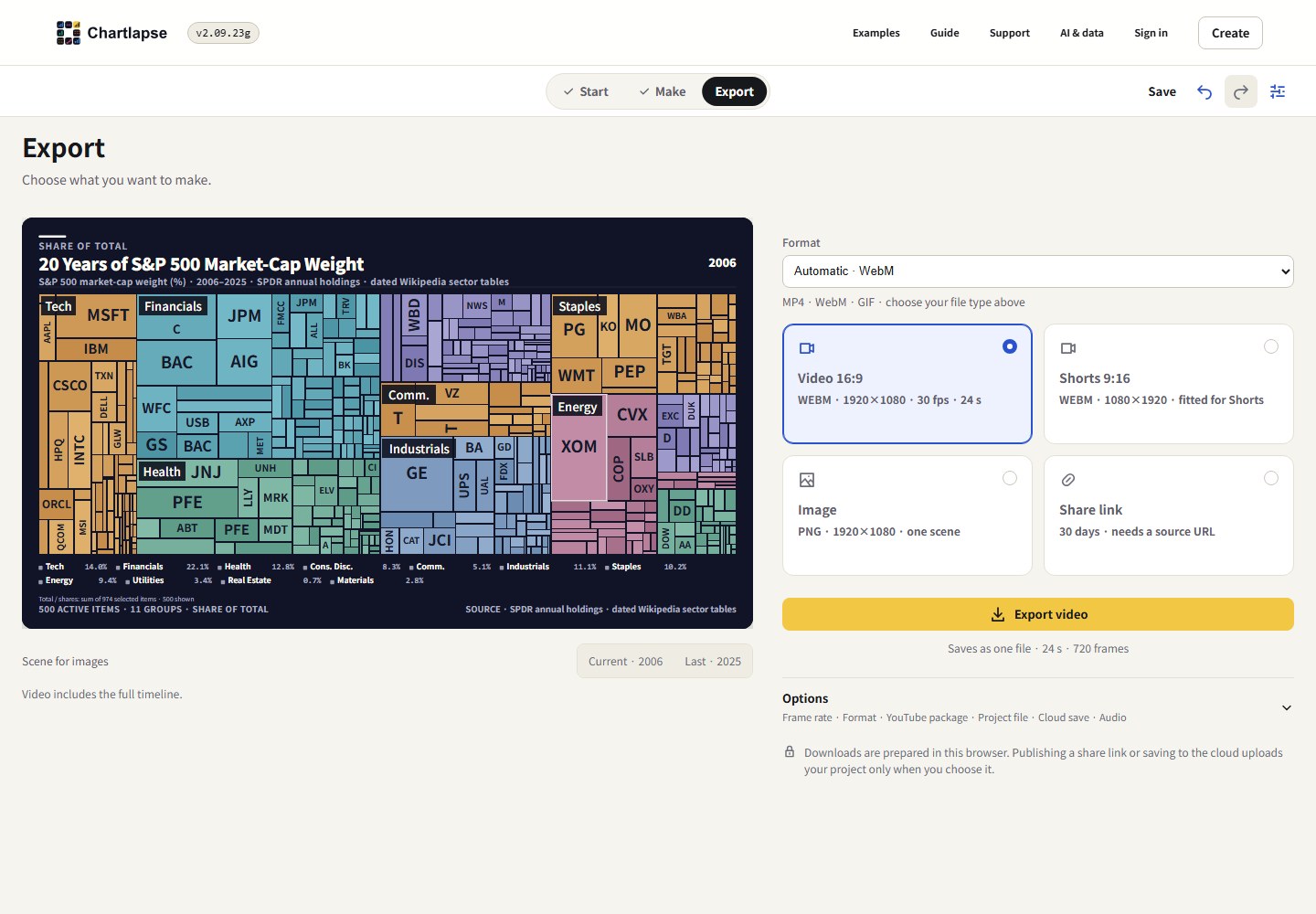
Video formats depend on your browser. Keep the page open until export finishes. Open full-size screenshot ↗
When you’re ready
Do I need a source URL to download?
Local image and video downloads do not require a source URL. Conflicting or invalid URLs are left out automatically, so you can build and download right away. Your original table stays unchanged. Choose a valid source URL before creating a share link.
How do I use my own Excel data?
In Start, choose a file or paste a table, then select Make a chart. You can download a template from the same screen. Use consistent item names, periods, and numeric values; review the detected columns and any warnings before continuing.
I have a topic, but no table yet.
Use the Excel template and copyable instructions in Start with your own AI service. Check the returned numbers and sources, then upload the completed table. Built-in AI data collection is paused in this beta.
How can I keep editing later?
In Export, open Options and download a Project file. Reopen it from Start to continue editing. Cloud save requires sign-in and an explicit save. Image and video downloads are finished outputs; keep the Project file too.
Need more help? Support